Docker Compose is a tool that lets you define and run multiple Docker containers together as one application. It simplifies networking between containers, manages environment variables, and lets you control start-up sequences. This is our last tutorial on how to use docker network to connect two standalone container by name.
Docker componse to automatically setup all services in the same docker network and lauch them all at once with a single command.
This tutorial will show you how to:
- Write a
docker-compose.yamlfile. - Connect services in the same Docker network.
- Control service start-up order to ensure dependencies are ready.
1. Understanding Docker Compose
Docker Compose allows you to define and run multi-container applications using a YAML file (docker-compose.yaml). It uses a YAML file (docker-compose.yaml) to configure the application’s services, networks, and volumes. This allows you to start or stop all services with a single command, which is much more efficient than managing individual containers manually.
This tutorial will show you how to:
- Write a
docker-compose.yamlfile. - Connect services in the same Docker network.
- Control service start-up order to ensure dependencies are ready.
Key Concepts:
- Services: Define containers (e.g.,
postgres,api). - Networks: Automatically creates a shared network for services to communicate.
- Dependencies: Control startup order using
depends_on(but note: it does not wait for a service to be “ready”). - Environment Variables: Configure services dynamically.
2. Creating a Docker Compose docker-compose.yaml File
At the root of your project, create: docker-compose.yaml, YAML is indentation-sensitive. Use 2 spaces per level (no tabs).
There are a lot of things you can config with a docker-compose file and you can read all about them in the documentation docs.docker.com and open reference link.
Note :
- Set the Postgres setting in docker-compose.yaml file based on what we have done in .github/workflows/ci.yml file
- We need to tell the api service for all our api request to simplebank.
- How to connect to the postgres database by api request. We can do this by setting the DB_SOURCE environment variable to the connection string for the postgres database.
- environment:- DB_SOURCE=postgresql://root:secret@postgres:5432/simple_bank?sslmode=disable
Setting this environment variable will allow the service to connect to the database, it will override the value we declare in the app.env file. We need to replace the @postgres to @pg-root-container this is postgres service we have created in previous lesson.
name: simplebank

services:
  postgres:
    image: postgres:16
    environment:
      - POSTGRES_USER=postgres
      - POSTGRES_PASSWORD=mysecretpassword
      - POSTGRES_DB=simple_bank

  api: #api services all our api requests to simplebank
    build:
      context: .
      dockerfile: Dockerfile # Dockerfile where to find the file to build the image
    ports:
      - "8080:8080" #simplebank this port for golang web
      - "9090:9090"
    environment:
- DB_SOURCE=postgresql://root:secret@pg-root-container:5432/simple_bank?sslmode=disable| Field | Current status |
|---|---|
version: | Deprecated — safe to remove |
name: | Optional — sets a custom project/application name |
What’s happening here:
services— Each service represents one container.image— For prebuilt images (PostgreSQL in this case).build— For custom-built images from aDockerfile(API service).environment— Sets environment variables inside the container.depends_on— Ensures start order, but not readiness.
The name field
- You can add a top-level
nameproperty to specify the project name for your Compose application. - If omitted, Compose will auto-generate a name (often based on the folder name).
- This project name can also be referenced in environment variables like
COMPOSE_PROJECT_NAME.
Networking in Docker Compose
- All services in a Compose file are placed in the same network automatically.
- You can connect them by service name (
postgresinstead oflocalhost).
Running docker compose up command
Now let run it by running following command
>docker compose up
Then docker compose will automatically search for the docker-compose.yaml file in the current folder and run it for you. As you can see the command line when running docker compose up before running service, It has to build the docker image for our simple bank API service first. Then after the image is successfully build. The docker compose will start both the postgres and the api service at once.

In the logs we can see whether it comes from which service and now in new terminal tab run docker images we can see a new record that is simplebank_api image. It is because the image name is prefixed with simplebank which is the name of the folder containing our docker file and its suffix is the name of the service itself, which is api.

Now run the docker ps to see all running services, we see that there are two service running simplebank-postgres-1 and simplebank_api-1.
Both of them have the simplebank prefix followed by the name of the service.
In docker compose up output list we can see that a new network simplebank_default is created before the two service container is created. We can check the simplebank_default network by running.
docker network inspect simplebank_default
We can see that both service containe are actually in same network and thus they can discover each other by name easily.
Problems when access API call
Now let’s run Postman to access the API call to check whether both services are working or not. Creating a user account API via Postman resulted in the error:
pq: relation "user" does not exist
This is because our relational database table user does not exist, as in the current docker-compose setup we haven’t implemented the DB migration to create the database schema yet.
To fixed this we need to update or docker-compsee.yaml file, to run db migration before starting the API server, it will be done similar fashion that we did on .github/workflow/ci.yml let modify the Dockerfile
Modify Dockerfile to include start.sh and plus all the blue color are the we had added to existing Dockerfile
#Build stage
FROM golang:1.24.6-alpine3.22 AS builder
WORKDIR /app
COPY . .
RUN go build -o main main.go
RUN apk add curl
RUN curl -L https://github.com/golang-migrate/migrate/releases/download/v4.18.3/migrate.linux-amd64.tar.gz | tar xvz


#Run stage
FROM alpine:3.22
WORKDIR /app
COPY --from=builder /app/main .
COPY --from=builder /app/migrate .
COPY app.env .
COPY start.sh .
COPY db/migration ./migration

EXPOSE 8080
CMD [ "/app/main" ]
ENTRYPOINT [ "/app/start.sh" ]
Next, we also have to copy all migration SQL files from db/migration folder to the image. By adding
COPY db/migration ./migration Start Script to Run Migrations
Now let define start.sh is to control the startup sequence inside the container.
It allows us to run prerequisite commands before launching the main application. In this project, it ensures that:
- Database migrations are applied first.
- Then, the main API server is started. This guarantees the database schema is ready before the application starts, preventing errors.
Finally we have to change the way we start the app, so that it can run the db migration before running the main binary. We are going to create start.sh file inside the root folder.
#!/bin/sh

set -e

echo "run db migration"
/app/migrate -path /app/migration -database "$DB_SOURCE" -verbose up

echo "start the app"
exec "$@"
key note:
- Let Change the mode of this file to make it executable by running following command on terminal chmod +x start.sh
- Now inside the start.sh we run file by /bin/sh because we are using alphine image as it doesnt have bash shell available by default.
- “$@” It means take all parameters passed to the script and run it.
Updated docker-compose.yaml
We also need to add this ENTRYPOINT [“/app/start.sh”] at the end of Dockerfile, to make it work we will use the ENTRYPOINT instruction. This specify the app/start.sh file is the main entry point of the docker image. The Dockerfile is updated.
#Build stage
FROM golang:1.24.6-alpine3.22 AS builder
WORKDIR /app
COPY . .
RUN go build -o main main.go
RUN apk add curl

RUN curl -L https://github.com/golang-migrate/migrate/releases/download/v4.18.3/migrate.linux-amd64.tar.gz -o migrate.tar.gz


#Run stage
FROM alpine:3.22
WORKDIR /app
COPY --from=builder /app/main .
COPY --from=builder /app/migrate ./migrate
COPY db/migration /app/migration
COPY start.sh .
#Add this config file
COPY app.env .
COPY db/migration ./migration


EXPOSE 8080
CMD ["/app/main"]
ENTRYPOINT ["/app/start.sh"]
Now first run the docker compose down, to remove all existing containers and networks and we should also remove the simplebank_api image also.
docker compose down
docker rmi simplebank-api
Untagged: simplebank-api:latest
We need to rebuild the new image after issues and changes we makes to the above files. And once everything is cleaned up run the docker compose up again.
docker compose upThe Startup Order Problem: A Race Condition
When we run the docker it seem like it is running but checking carefully we can see the error api-1 exited with code and in lock we can see that error connection refused. The app can’t connect database to run the db migration.
This is because, when you run docker compose up, both services are started nearly simultaneously. However, the postgres database server takes a few seconds to initialize and become ready to accept connections.
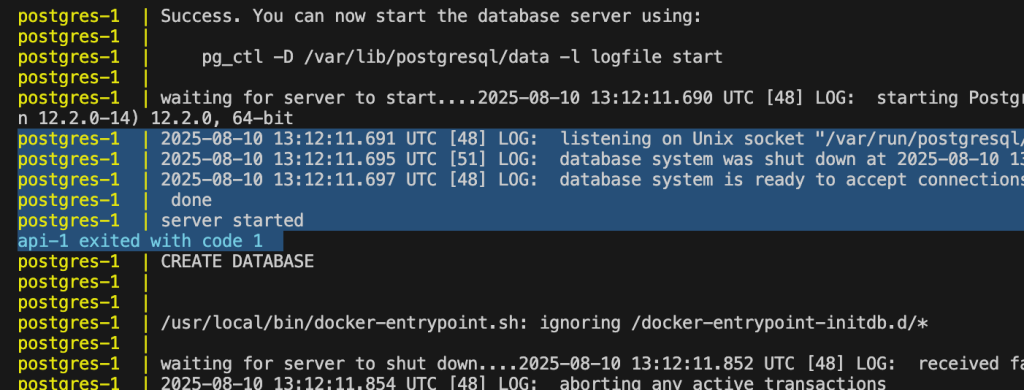
Our api service, which runs database migrations upon startup, will likely try to connect to the database before it’s ready. This results in a “connection refused” error, and the api container will crash.
Solution: Controlling Startup with a Wait Script
To solve this, we need to make the api service wait for the postgres service to be fully ready before it proceeds. Before trying to run the db migration script and start the API server.
The Flaw of depends_on
In docker-compose.yaml file we can use a depends_on instruction to tell the docker compose the api server depend on the postgres service. This make sure that the postgres is start before the api server.
Problem: depends_on is Not Enough
depends_ononly ensures startup order, not readiness.- If
apistarts before Postgres is ready, it will fail.
Example problem: - Your API starts immediately after PostgreSQL starts, but PostgreSQL may not yet be ready to accept connections — migrations fail.
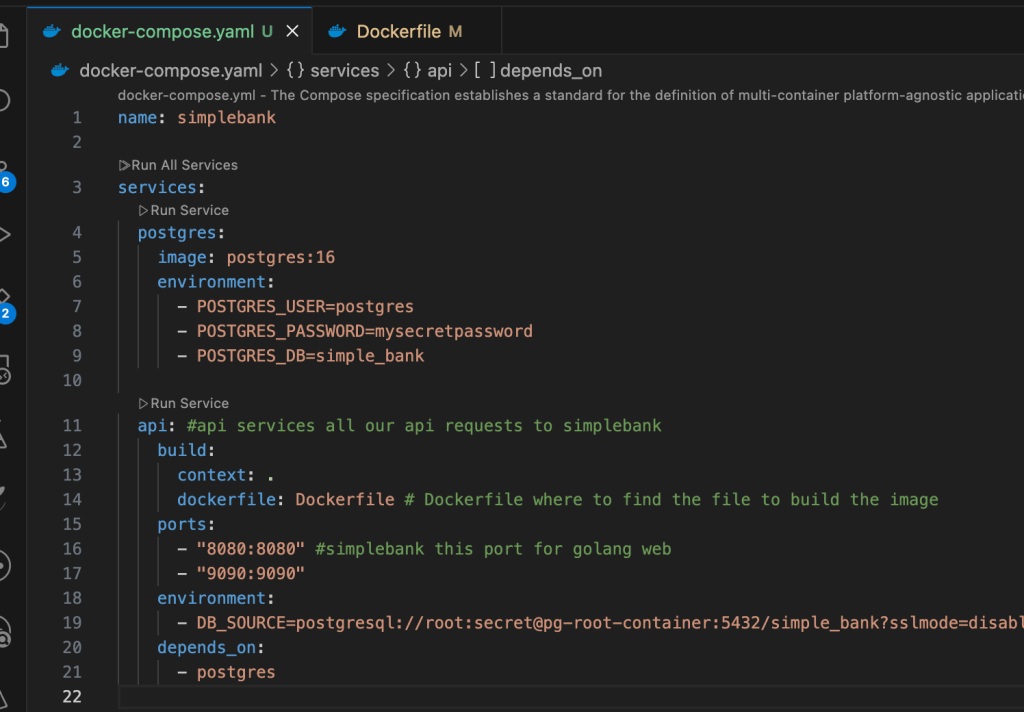
The Robust Solution: A wait-for Script
The correct approach is to use a script that actively polls the dependent service’s port until it’s open. We use a shell script called wait-for.sh for this purpose.
A wait-for.sh script (from GitHub) ensures a service (e.g., Postgres) is ready before proceeding.
./wait-for is a script designed to synchronize services like docker containers. It is sh and alpine compatible. Click on wait-for on above Github link, once it is open then click on Release v2.2.4 that is latest. After clicking you can see the download option and downloaded wait-for (v2.2.4) as it is first open and dont download the zip format.
Once it is download the copy it to our project and change the file with extension .sh
mv /Users/username/Desktop/wait-for ./wait-for.sh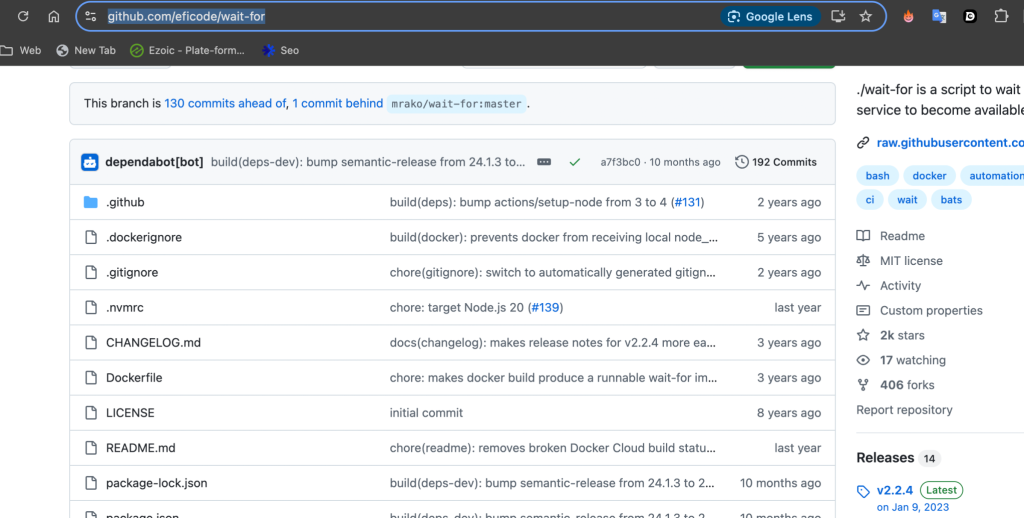
There is one more issues as wait-for.sh is not executable file we need to make it by running following command.
chmod +x wait-for.shStep 1: Update the Dockerfile to Include Necessary Files
Your application’s Dockerfile needs to be modified to include the wait script (wait-for.sh).
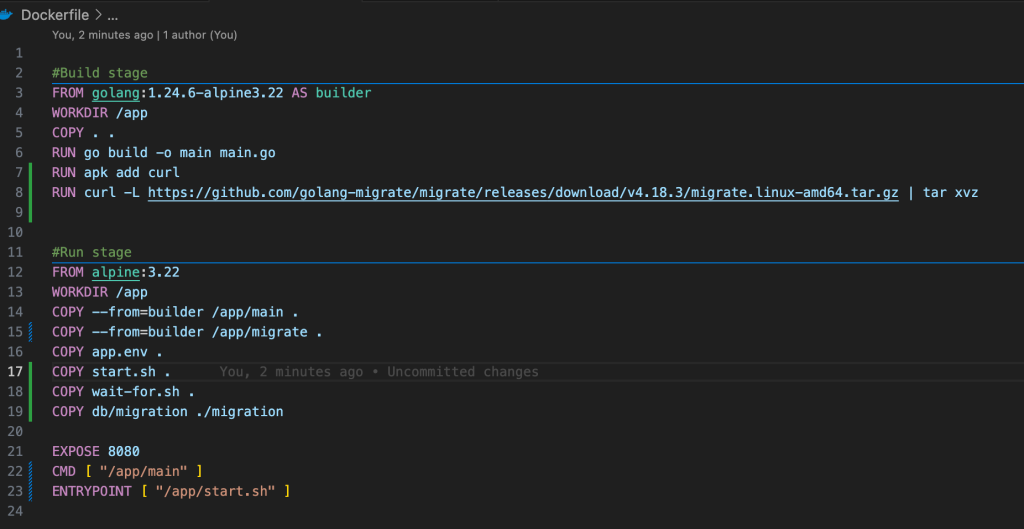
In docker-compose file we should override entry point and command, so that it will wait for the postgres service to be ready before trying to ready the API service at end of docker-compose.yaml file
name: simplebank

services:
  postgres:
    image: postgres:16
    environment:
      - POSTGRES_USER=postgres
      - POSTGRES_PASSWORD=mysecretpassword
      - POSTGRES_DB=simple_bank

  api: #api services all our api requests to simplebank
    build:
      context: .
      dockerfile: Dockerfile # Dockerfile where to find the file to build the image
    ports:
      - "8080:8080" #simplebank this port for golang web
      - "9090:9090"
    environment:
      - DB_SOURCE=postgresql://root:secret@pg-root-container:5432/simple_bank?sslmode=disable
    depends_on:
      - postgres
    entrypoint:
      ["/app/wait-for.sh", "pg-root-container:5432", "--", "/app/start.sh"]
    command: ["/app/main"]
Where “postgres:5432” is host and port
In the docker-compose.yml file, we set a custom entrypoint — a start.sh script — so that our API container waits until PostgreSQL is ready before starting.
But when you override an image’s entrypoint, Docker removes the image’s default startup command (the CMD you wrote in the Dockerfile).
That means our application (/app/main) won’t start automatically anymore. So, we must explicitly tell Docker in the docker-compose.yml file which command to run after the start.sh script finishes. Let add this at end of the docker-compose.yaml file
command: ["/app/main"]Entrypoint and Command Explained:
depends_on: We still include this for clarity and to ensure the container start order is correct.entrypoint: This overrides theENTRYPOINTin theDockerfile./app/wait-for.sh: The script to run.postgres:5432: The host and port it should wait for.--: A separator that tellswait-for.shthat the subsequent arguments are the command to execute after the wait is over./app/start.sh: The script to run oncepostgres:5432is accessible.
command: When you override theentrypointindocker-compose.yaml, theCMDfrom theDockerfileis ignored. You must provide thecommandhere explicitly. This command (/app/main) is passed as an argument to the entrypoint script (start.sh).
Running the Application
With the files in place, you can now manage your application with these commands:
- Start the services:
docker compose up(Add-dto run in detached mode). - Stop and remove containers, networks, and volumes:
docker compose down - Force a rebuild of the images before starting:
sh docker compose up --build
If you faced any issue try to remove old docker image also. Now, when you run docker compose up, the api service will wait for the postgres service to be ready, then run migrations, and finally start the application server, preventing any race conditions.